Voice agents are transforming business operations by introducing efficiencies and personalization for each customer interaction. While most use cases focus on agents receiving calls, this tutorial covers outbound voice AI agents and the use cases they unlock. Outbound agents handle tasks like appointment scheduling, lead qualification, and customer follow-ups while maintaining a human-like, conversational tone. They replace manual efforts with intelligent automation, improving customer engagement in sales, healthcare, hospitality, and collections. This tutorial sets up an outbound calling agent that does a warm transfer — handing off the call to a real person using LiveKit. A fitting example: a support center where an agent collects data before connecting to a real person. The final code implementation and complete example can be found in our examples Github repository here.

Cerebrium setup

Install the Cerebrium CLI and create a project:
pip install cerebrium --upgrade
cerebrium login
cerebrium init livekit-voice-agent
This creates a folder with two files:
  • main.py - The entrypoint file where application code lives.
  • cerebrium.toml - A configuration file that contains all build and environment settings.
These files are populated later in the tutorial.

Livekit Setup

LiveKit is a platform for building real-time audio and video applications. Start by creating a LiveKit account. You can do this by signing up to an account here (they have a generous free tier). Once the account is created, run the following commands to install the CLI package (Homebrew can be installed from here).
brew update && brew install livekit-cli
Authenticate the CLI with the newly created account:
lk cloud auth
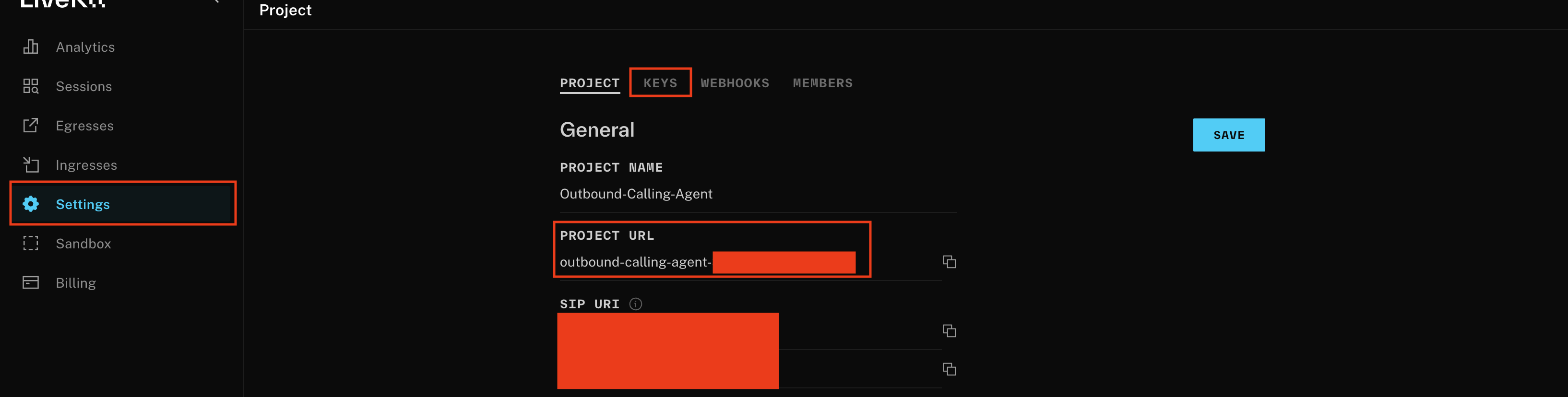
Create a .env file with LiveKit credentials. Get these from the LiveKit dashboard: click the Settings tab for the project URL, then the Keys tab to create a new key and copy the API key and secret:
LIVEKIT_URL=<your LiveKit WebSocket URL>
LIVEKIT_API_KEY=<your API Key>
LIVEKIT_API_SECRET=<your API Secret>
LiveKit Dashboard The LiveKit instance is now set up as the transport layer for the agent.

Twilio Setup

Setting up an outbound calling agent requires a SIP trunk in Twilio. A SIP trunk is a virtual phone line that connects the app to the traditional phone network, enabling outbound calls to any phone number. It routes calls properly and reliably, acting as the bridge between the app and the global telephony system.
  1. Log in to your Twilio Console: Go to Twilio Console and log in with your credentials. If you don’t already have an account, create one.
  2. Add Phone Numbers: Under the “Develop” tab is the “Phone numbers” section. Navigate to “Active numbers” and purchase a number if you don’t already have one. Toll free numbers won’t work for our use case, so ensure that a “Local” number exists.
  3. Install the Twilio CLI and authenticate your CLI:
    brew tap twilio/brew && brew install twilio
    twilio login
    
  4. Create a SIP trunk: The domain name for your SIP trunk must end in pstn.twilio.com. For example to create a trunk named My test trunk with the domain name my-test-trunk.pstn.twilio.com, run the following command:
    twilio api trunking v1 trunks create \
    --friendly-name "My test trunk" \
    --domain-name "my-test-trunk.pstn.twilio.com"
    
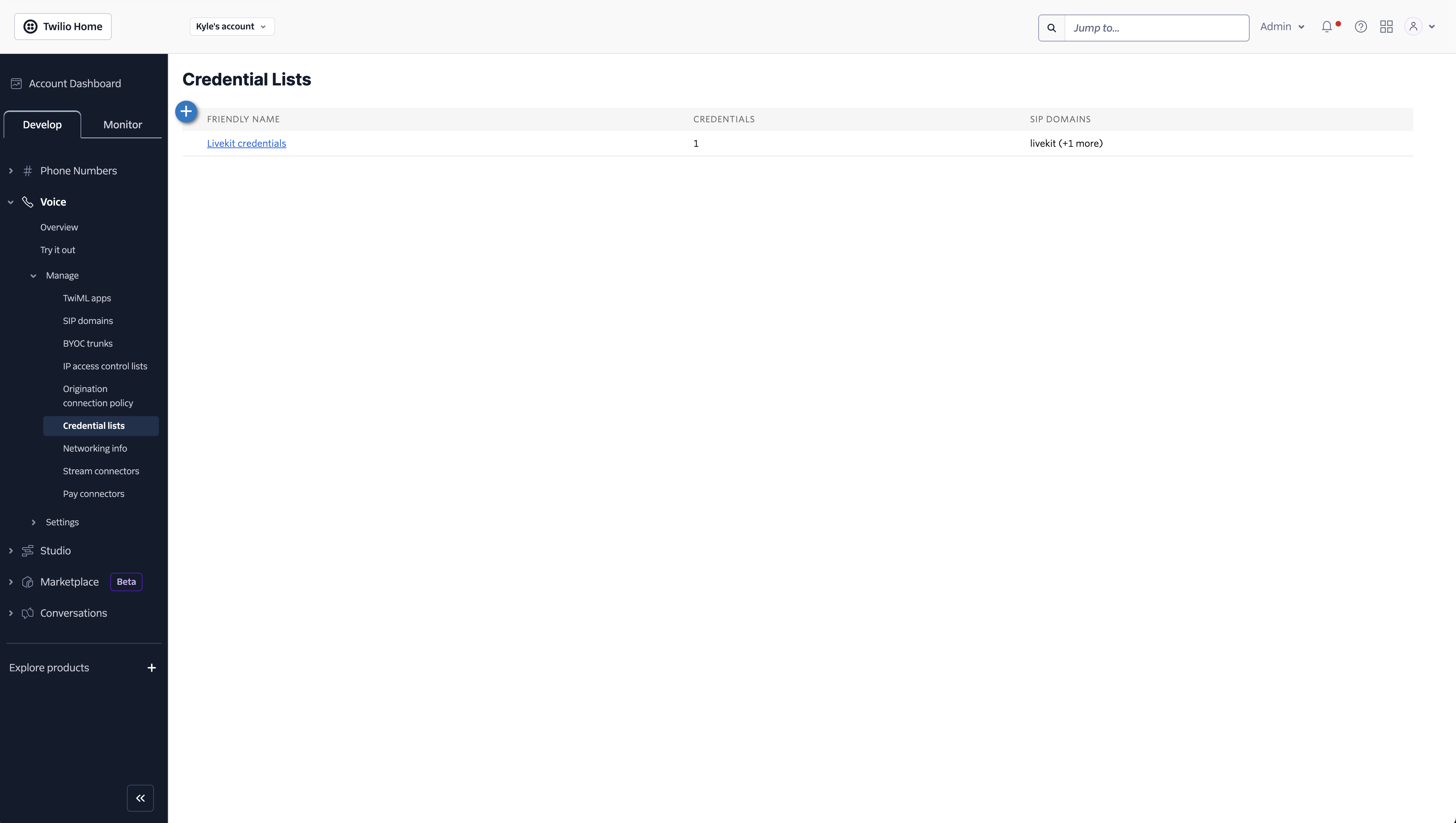
  5. Create your credentials: To secure the SIP trunk, create a credential list in the Twilio console dashboard. Navigate to “Voice”, then “Manage”, then “Credential lists”. Click the plus icon and add a friendly name, username, and password. Save these credentials — they are required in a later step.
Twilio Dashboard
  1. Associate your SIP with your newly created credentials. Copy the values for your Account SID and Auth Token from the Twilio console.
export TWILIO_ACCOUNT_SID="<twilio_account_sid>"
export TWILIO_AUTH_TOKEN="<twilio_auth_token>"
With the trunk configured, register Twilio’s outbound trunk with LiveKit. SIP trunking providers typically require authentication when accepting outbound SIP requests to ensure only authorized users can make calls. Create a file named outbound-trunk.json using the Twilio phone number you purchased in the previous step, trunk domain name, and username and password.
{
    "trunk": {
        "name": "My outbound trunk",
        "address": "<sip name>.pstn.twilio.com",
        "numbers": ["<twilio number>"],
        "auth_username": "cerebrium",
        "auth_password": "<password>"
    }
}
Run the following in your CLI: lk sip outbound create outbound-trunk.json The output returns the trunk ID, which is required in a later step.

Services setup

The following services power the outbound AI agent: Each service offers a generous free tier:
  • Deepgram
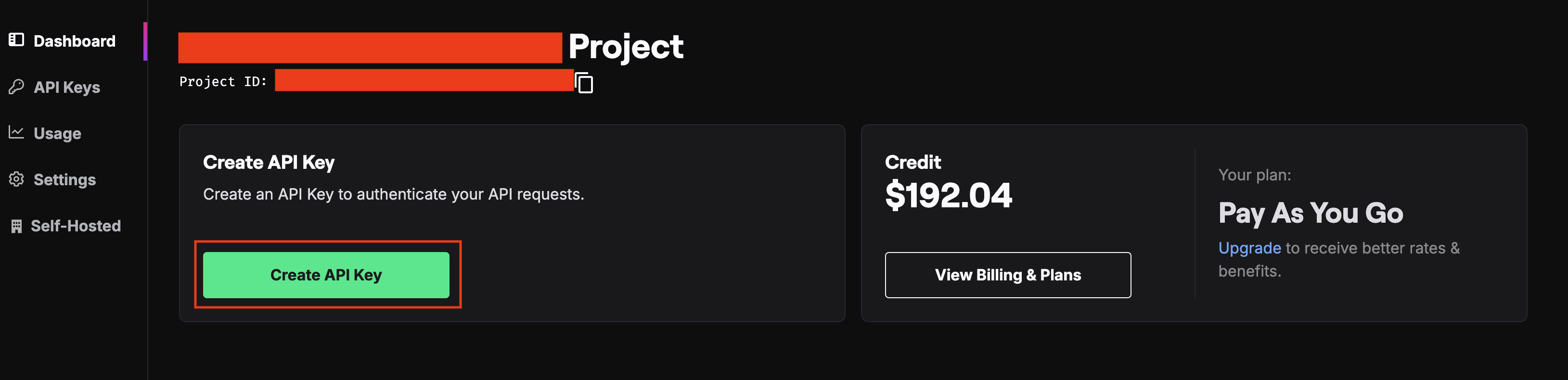
You can signup for a Deepgram account here. Straight from the dashboard, you can create a API key. Store this value for later Deepgram Dashboard
  • OpenAI
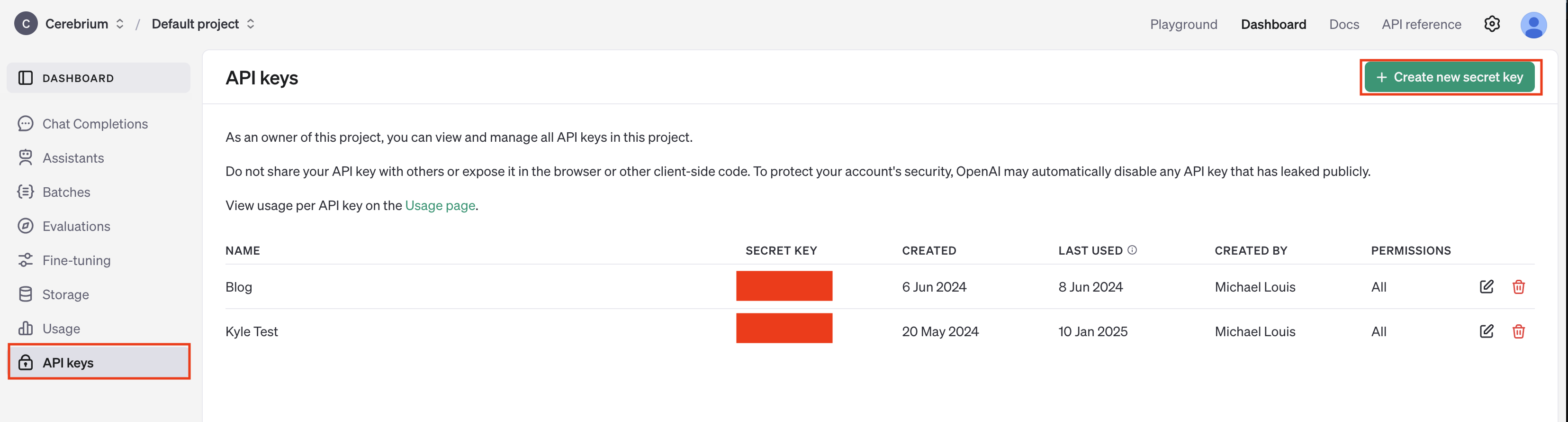
You can signup for a OpenAI account here. You can then click “Dashboard” top right and then “API keys” in the left sidebar. Create an API key and store this value to use later. OpenAI Dashboard
  • Cartesia
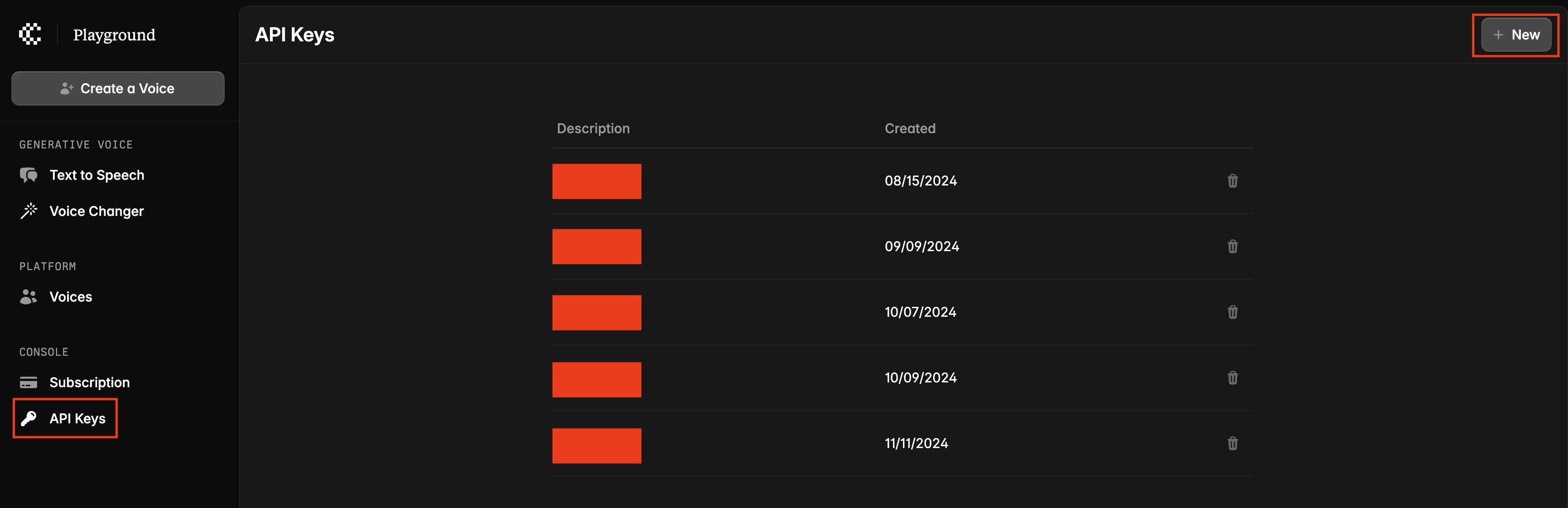
You can signup for a Cartesia account here. Once you login, you can click, API keys in the left sidebar and create a new API key. Cartesia Dashboard Finally, let us then create a .env file that contains our environment variables from all the steps above.
LIVEKIT_API_KEY=""
LIVEKIT_API_SECRET=""
LIVEKIT_URL=""
DEEPGRAM_API_KEY=""
OPENAI_API_KEY=""
CARTESIA_API_KEY=""
SIP_TRUNK_ID=""
Create a requirements.txt with the following Python packages:
livekit-agents>=0.11.1
livekit-plugins-openai>=0.10.5
livekit-plugins-deepgram
livekit-plugins-cartesia
livekit-plugins-silero>=0.7.3
livekit-plugins-rag>=0.2.2
python-dotenv~=1.0
aiofile~=3.8.8
fastapi
uvicorn
Run pip install -r requirements.txt. FastAPI is explained later. Create a file called main.py for the agent code. The directory structure should look like this:
  • main.py
  • .env
  • requirements.txt
  • outbound-trunk.json
Add the following code to your main.py
from fastapi import FastAPI
from dotenv import load_dotenv
from livekit.agents import (
    AutoSubscribe,
    JobContext,
    JobProcess,
    WorkerOptions,
    WorkerType,
    cli,
    llm,
    metrics
)
from livekit import api
from livekit.agents.pipeline import VoicePipelineAgent
from livekit.plugins import openai, deepgram, silero, cartesia
import os
import asyncio
import sys
import logging

load_dotenv()
logging.basicConfig(level=logging.INFO, format='%(asctime)s - %(levelname)s - %(message)s')

app = FastAPI()

async def entrypoint(ctx: JobContext):

    initial_ctx = llm.ChatContext().append(
        role="system",
        text="You are a voice assistant created by Cerebrium. Your interface with users will be voice. You should use short and concise responses, and avoiding usage of unpronouncable punctuation.",
    )

    await ctx.connect(auto_subscribe=AutoSubscribe.AUDIO_ONLY)

    agent = VoicePipelineAgent(
        vad=silero.VAD.load(),
        # flexibility to use any models
        stt=deepgram.STT(model="nova-2-general"),
        llm=openai.LLM(
            model="gpt-4o-mini",
            temperature=0.5,
        ),
        tts=cartesia.TTS(),
        # intial ChatContext with system prompt
        chat_ctx=initial_ctx,
        # whether the agent can be interrupted
        allow_interruptions=True,
        # sensitivity of when to interrupt
        interrupt_speech_duration=0.5,
        interrupt_min_words=0,
        # minimal silence duration to consider end of turn
        min_endpointing_delay=0.3,
        fnc_ctx=fnc_ctx
    )

    usage_collector = metrics.UsageCollector()

    @agent.on("metrics_collected")
    def _on_metrics_collected(mtrcs: metrics.AgentMetrics):
        metrics.log_metrics(mtrcs)
        usage_collector.collect(mtrcs)

    async def log_usage():
        summary = usage_collector.get_summary()
        print(f"Usage: ${summary}")

    ctx.add_shutdown_callback(log_usage)

    agent.start(ctx.room)
    await asyncio.sleep(1.2)
    await agent.say("Hey, how can I help you today?", allow_interruptions=True)


if __name__ == '__main__':
    if len(sys.argv) == 1:
            sys.argv.append('start')
    cli.run_app(WorkerOptions(entrypoint_fnc=entrypoint, worker_type=WorkerType.ROOM, port=8600))

This LiveKit setup does the following:
  • Specifies an initial system prompt to guide the AI agent
  • Lists the services and configures response timing settings
  • Collects and displays call metrics throughout, with a summary logged when the call ends
  • Starts the agent with an initial greeting
To connect the customer to a real person when a specific stage is reached or the user requests it, use function calling. Add the following code to the entrypoint:
#Add this below the initial_ctx line
fnc_ctx = llm.FunctionContext()
@fnc_ctx.ai_callable()
async def transfer_call(
    # by using the Annotated type, arg description and type are available to the LLM
):
    """Called when the receiver would like to be transferred to a real person. This function will add another participant to the call."""
    await create_sip_participant("<Phone number to call>", "Test SIP Room")
    await agent.say("Connecting you to my colleague - please hold on", allow_interruptions=True)

    await ctx.room.disconnect()

The @ai_callable decorator tells the LLM this function is available, and the docstring describes when to use it. When triggered, the function makes an outbound call to a phone number and disconnects the agent from the room, leaving just the two users in the call. The create_sip_participant() function is defined in the next step. To create an outbound call and add a user to the call, add the following code to main.py above entrypoint():
async def create_sip_participant(phone_number, room_name):
    LIVEKIT_URL = os.getenv('LIVEKIT_URL')
    LIVEKIT_API_KEY = os.getenv('LIVEKIT_API_KEY')
    LIVEKIT_API_SECRET = os.getenv('LIVEKIT_API_SECRET')
    SIP_TRUNK_ID = os.getenv('SIP_TRUNK_ID')

    livekit_api = api.LiveKitAPI(
        LIVEKIT_URL,
        LIVEKIT_API_KEY,
        LIVEKIT_API_SECRET
    )
    sip_trunk_id = SIP_TRUNK_ID
    try:
        await livekit_api.sip.create_sip_participant(
            api.CreateSIPParticipantRequest(
                sip_trunk_id=sip_trunk_id,
                sip_call_to=phone_number,
                room_name=room_name,
                participant_identity=f"sip_{phone_number}",
                participant_name="SIP Caller"
            )
        )
        await livekit_api.aclose()
        return f"Call initiated to {phone_number}"
    except Exception as e:
        await livekit_api.aclose()
        return f"Error: {str(e)}"
To test locally, create a test.py file:
import asyncio
from main import create_sip_participant

async def main(number: str):
    room_name = "Test SIP Room"

    result = await create_sip_participant(number, room_name)
    print(result)

if __name__ == '__main__':
    asyncio.run(main("<Your number>"))
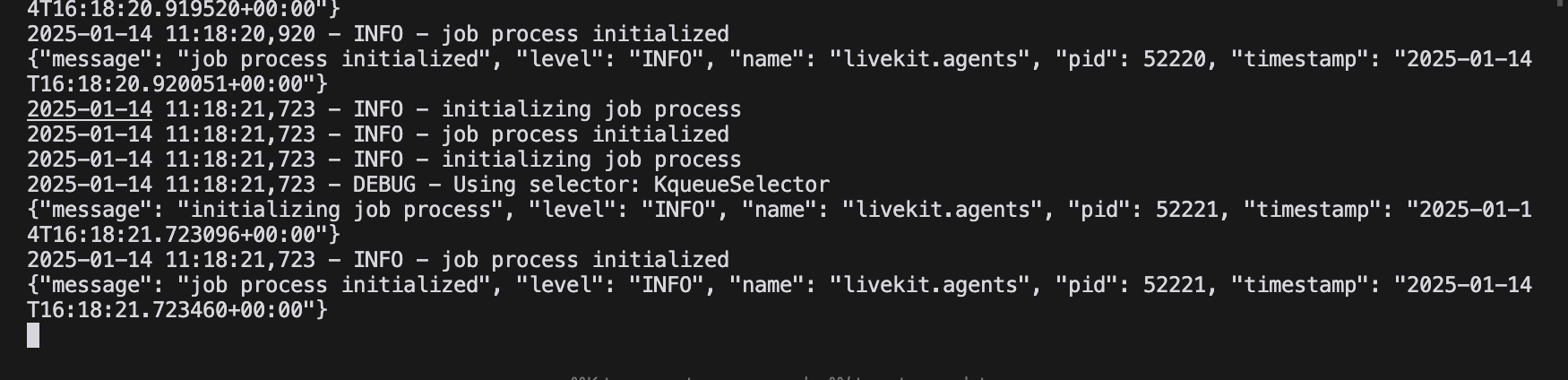
To test locally, run python main.py in one terminal. This keeps the agents running as an open process: LiveKit processes Once the job processes initialize, open a separate terminal and run python test.py. This initiates a call to the provided phone number. Note: calls are limited to the region the number is purchased from. With local testing working, deploy on Cerebrium for production-ready autoscaling.

Deploy on Cerebrium

Specify the Cerebrium environment using a Dockerfile:
FROM debian:bookworm-slim

# Install Python and pip
RUN apt-get update && apt-get install -y \
    python3.11 \
    python3-pip \
    && rm -rf /var/lib/apt/lists/*

# Create and set working directory
WORKDIR /cortex

# Copy requirements and install dependencies
COPY requirements.txt .
RUN pip install --break-system-packages -r requirements.txt

# Copy application code
COPY . .

# Download model files
RUN python3 main.py download-files

# Set environment variables
ENV HF_HOME=/cortex/.cache/

# Expose port
EXPOSE 8600

# Set entrypoint
CMD ["python3", "main.py", "start"]
Edit cerebrium.toml with the following:
[cerebrium.deployment]
name = "outbound-livekit-agent"
python_version = "3.11"
docker_base_image_url = ""
disable_auth = false
include = ['./*', 'main.py', 'cerebrium.toml']
exclude = ['.*']

[cerebrium.hardware]
cpu = 2
memory = 8.0
compute = "CPU"

[cerebrium.scaling]
min_replicas = 1
max_replicas = 5
cooldown = 30
replica_concurrency = 1

[cerebrium.dependencies.paths]
pip = "requirements.txt"

[cerebrium.runtime.custom]
port = 8600
dockerfile_path = "./Dockerfile"
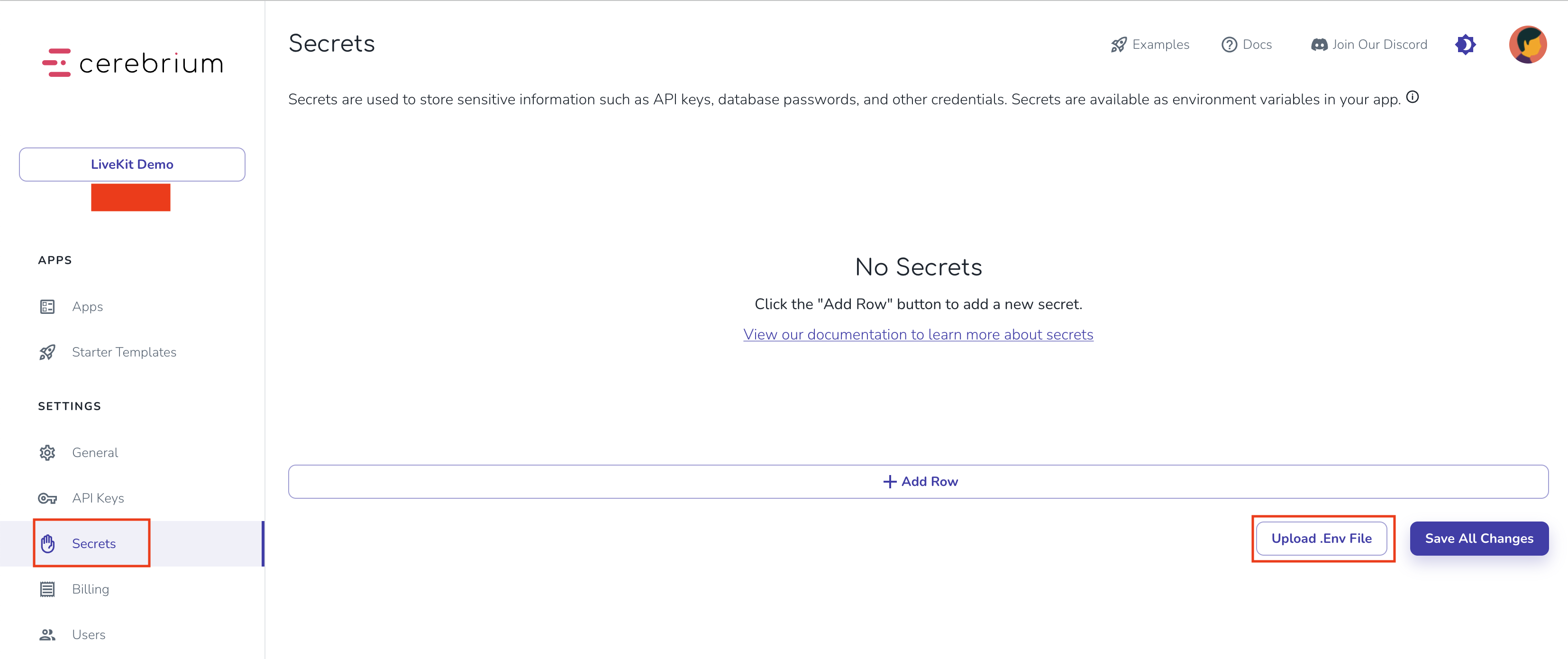
This defines the hardware, scaling parameters, dependencies, and the port and Dockerfile for the application. In the Cerebrium dashboard, go to the Secrets tab in the left sidebar and upload the .env file. Cerebrium imports secrets as standard environment variables, making local and cloud testing seamless. Cerebrium Secrets Run the following command:
cerebrium deploy
This installs all necessary packages and deploys the application. LiveKit workers run in the cloud — test by running the test.py script locally and checking logs on the Cerebrium dashboard.

Further Improvements:

To reduce latency, Cerebrium partners with Deepgram and Rime to run STT and TTS models locally alongside the LiveKit worker, reducing latency by ~400ms. This tutorial set up an outbound calling agent that performs warm transfers to live agents using LiveKit. The solution supports diverse use cases such as pre-call data collection, sales outreach, and customer follow-ups by integrating LiveKit, Twilio, and AI-driven STT, TTS, and LLM services. Find the final example on GitHub. Ask questions or give feedback in the Discord community.